
Tool setup
4 tools to set up before you start. Open each one, follow the steps, then come back to the guide.
1Claude Code4 steps
Why you need it: Claude Code is the part of Claude that can create files and run programs on your computer, so it builds the project for you instead of only describing it.
Get it: claude.com/download
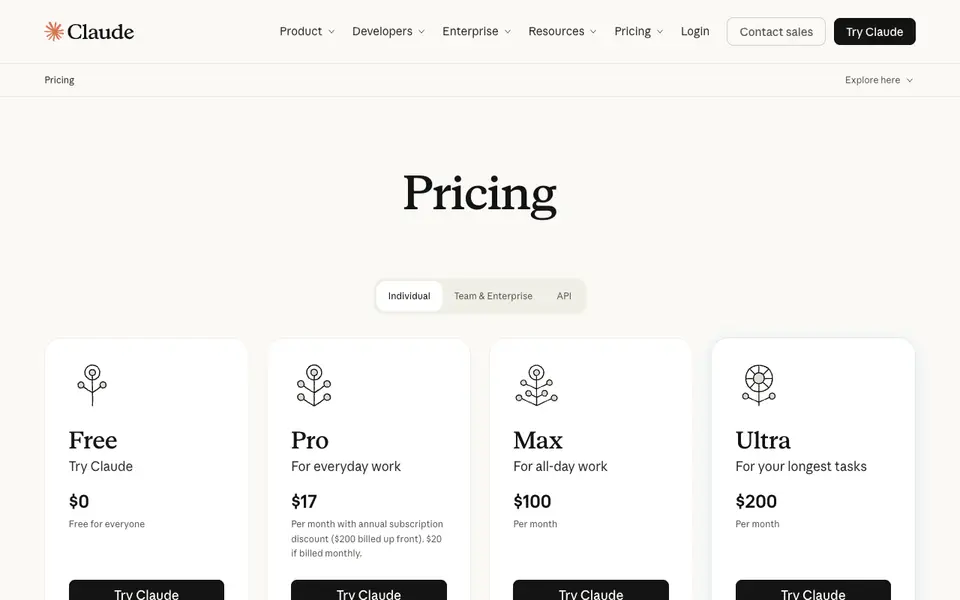
- Get a paid Claude plan Claude Code needs Pro or higher. Go to claude.com/pricing and choose Pro. The Free plan does not include it.
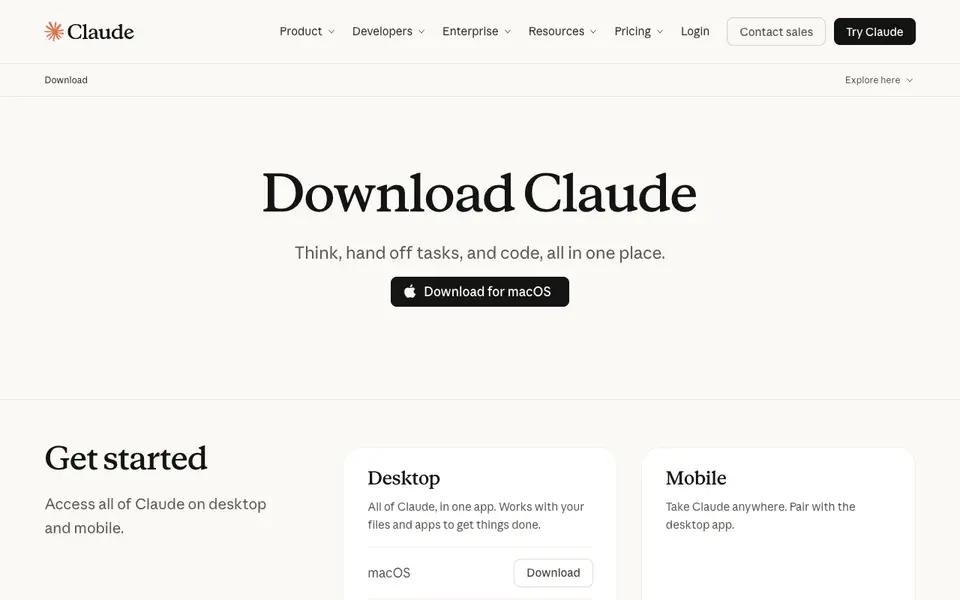
- Download the Claude desktop app Go to claude.com/download, pick macOS or Windows, install it like any app (on a Mac, drag it into Applications) and sign in.
- Open the Code tab Click Code at the top. Under the message box, set where Claude works to This computer and choose a folder for the project.
- Prefer the terminal? Mac/Linux:
curl -fsSL https://claude.ai/install.sh | bash· Windows PowerShell:irm https://claude.ai/install.ps1 | iex· then typeclaudeand sign in.
2GitHub3 steps
Why you need it: GitHub stores your code online; Vercel or Netlify read it from there to put your site live.
Get it: github.com/signup
- Create an account Sign up free at github.com/signup with your email.
- Install Git Mac:
brew install git(orxcode-select --install) · Windows:winget install Git.Git - Let Claude connect it Claude Code connects to GitHub when it pushes your code.
3UI/UX Pro Max skill2 steps
Why you need it: The skill gives Claude a designer's library of styles, colours and fonts, so your website looks professional.
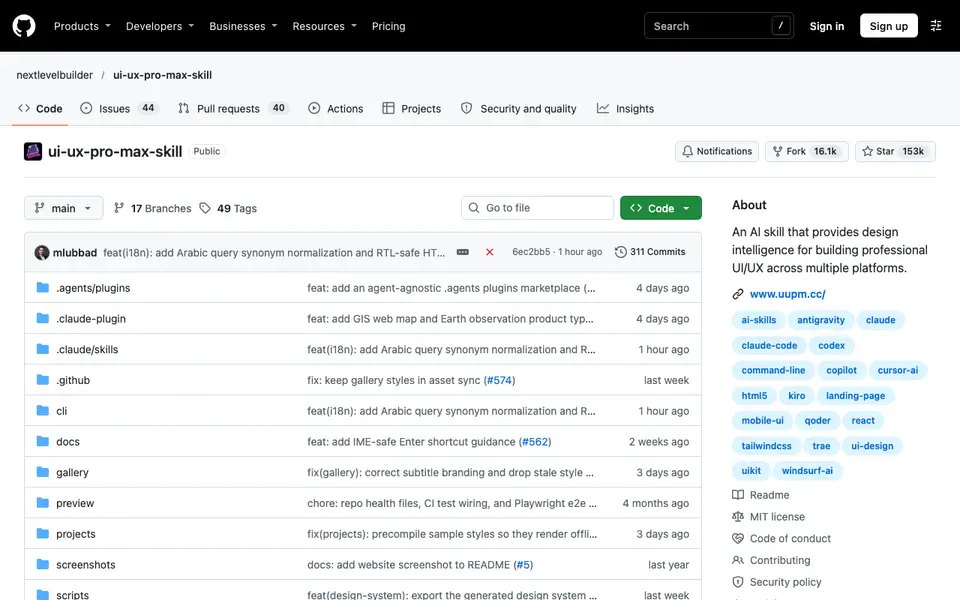
Get it: github.com/nextlevelbuilder/ui-ux-pro-max-skill
- Have Claude Code Skills run in Claude Code (desktop app Code tab or terminal) on a paid Claude plan.
- Install from chat Paste into Claude Code: https://github.com/nextlevelbuilder/ui-ux-pro-max-skill Install this skill.
421st.dev Magic MCP3 steps
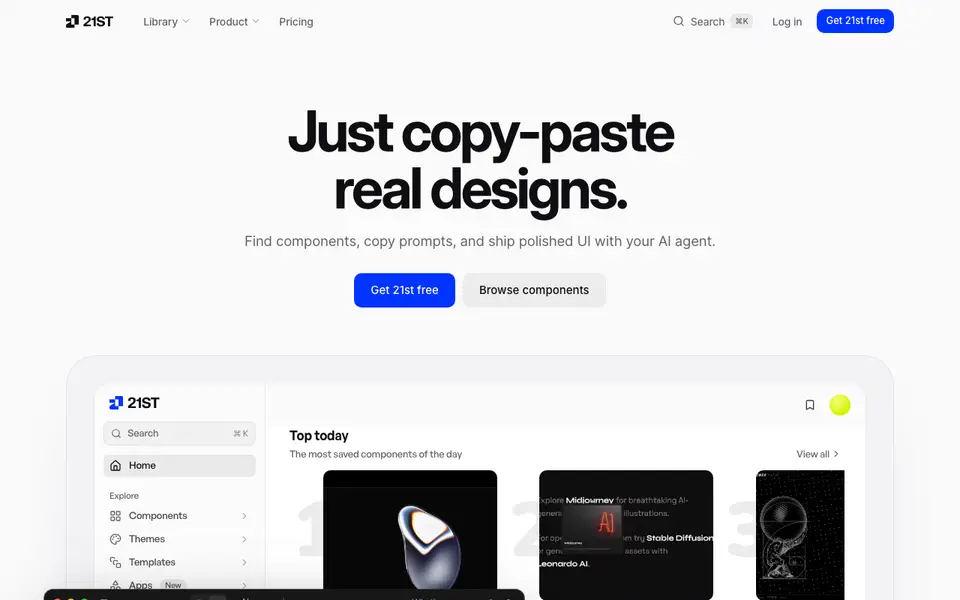
Why you need it: Magic MCP lets Claude pull ready-made UI components from 21st.dev into your site.
Get it: 21st.dev
- Have Claude Code Skills run in Claude Code (desktop app Code tab or terminal) on a paid Claude plan.
- Get the install command Go to 21st.dev, open the Magic MCP section, sign in and copy the install command (it includes your API key).
- Add it to Claude Code Paste the command into your terminal, then restart Claude Code.
If you're a student or an early-career professional, you need to know that AI is now one of the mandatory skills you can't avoid — whether you want to get a job, become an entrepreneur, or move into any career in the future. AI is already starting to take over certain tasks. But remember: AI won't take your job — someone using AI will. So start using AI across every part of your life, in your day-to-day work, and in building your business.
About myself: Hi, I'm Ritu Dadhwal. I'm a graduate of NIT Hamirpur, and I currently work as a Product Manager. I help you become a skilled professional by teaching you AI in every 30-second reel — building 100 AI projects for you to learn from.
Follow my channel if you find it interesting. And you can always reach out to me for any of your queries via DM.
Build Premium AI Websites Using Claude Code + UI/UX Pro Max + 21st.dev
What you'll need
- Claude Code installed
- Git installed
- Node.js installed
- A GitHub account
Step 1 — Install Claude Code
Download and install Claude Code.
https://docs.anthropic.com/en/docs/claude-code
Verify installation:
claude --version
Step 2 — Install the UI/UX Pro Max Skill
Open the UI/UX Pro Max repository on GitHub.
https://github.com/nextlevelbuilder/ui-ux-pro-max-skill
Copy the repository URL.
Open Claude Code inside your project.
Ask Claude:
Install this GitHub skill into my Claude Code project:
Claude will install the skill and make its design resources available.
This provides:
- 50+ UI styles
- 97 curated color palettes
- Premium typography combinations
- Layout patterns
- Modern design principles
Step 3 — Install the 21st.dev Magic MCP Server
Visit:
Navigate to the Magic MCP section.
Copy the installation command.
Paste that command into your terminal (or follow the Claude Code MCP setup instructions) to register the Magic MCP server with Claude Code.
Once installed, Claude can access premium UI components directly while generating code.
Step 4 — Start Building
Inside Claude Code, describe your website.
Example:
Build a modern SaaS landing page for an AI meeting assistant with a dark theme, premium gradients, glassmorphism, pricing section, testimonials, FAQ, responsive layout, smooth Framer Motion animations, and a modern navigation bar.
Claude will automatically use:
- UI/UX Pro Max design guidance
- 21st.dev components
- Modern layouts
- Professional color systems
- Typography
- Animations
to generate a polished landing page.
Step 5 — Iterate
Continue refining with prompts like:
- Make it more premium.
- Improve the hero section.
- Add Apple-style animations.
- Use a cleaner typography hierarchy.
- Increase whitespace.
- Make it feel like Linear.
- Improve mobile responsiveness.
Why This Workflow Works
Claude's coding ability isn't the bottleneck.
The real improvement comes from giving it access to:
- Professional design systems
- Curated UI patterns
- Premium component libraries
- Better visual hierarchy
- High-quality frontend references
Instead of generating generic websites, Claude now has the design context needed to produce interfaces that look significantly more polished.